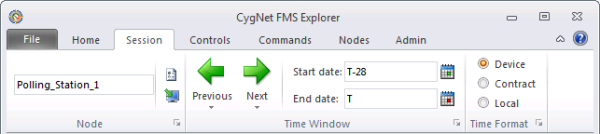
Use the Session menu to view or define parameters for a working "Session" in FMS Explorer. Settings defined on this menu can then be applied to any control set to Use Session Node and/or Use Session options. All such controls will then display data for the commonly defined session parameters. Any or all of these settings can then be quickly changed to suit your changing working session goals.
The parameters used to describe a "Session" include a Session Node, a Time Window, and a Time Format.
The Session Node is the Node against which all selected controls and commands can optionally be run. The session Time Window and session Time Format together comprise the Session options. The Session Time Window describes the beginning and ending days of the range for which you want to view data; it is always in contract days (assuming a contract hour of zero). The Session Time Format describes the date/time format in which you want to view the data; it affects the display format of the data timestamp within your controls (but does not adjust the time window).
Each time a session parameter is changed, controls set to Use Session Node and/or Use Session options will refresh to reflect the current session setting(s).
Note: Use Session Node and Use Session options are selected by default for all Data controls (Alarm, Configuration, History Graph, History Grid, and Raw Data). They are cleared by default for Summary controls (Dashboard, Exceptions) and Admin controls (Balance, PPA (only Use Session options applies); not applicable to Close Period).
You can define or edit session parameters individually, or you can configure session settings all at once.
To change only one parameter (e.g. Node name), change that parameter and the data will be refreshed in controls subscribed to that option. To change more than one parameter (e.g. Node name and both start date and end date) you may wish to use the dialog box launcher  to change multiple session settings all at once, thereby saving time by refreshing the data only one time to include all desired parameter changes.
See Session Node for more information.
Session settings can be defined by the following Node, Time Window, and Time Format parameters. Once set, session parameters can optionally be applied across FMS Explorer to facilitate greater efficiency performing a variety of data analysis tasks. The settings will apply for any control that has selected Use Session Node (Node settings) and/or Use Session options (time window/time format settings).
The Session Node can be viewed or entered in this field, and the properties and associated polling device for the selected Session Node can be accessed as follows. The Session Node determines the Node for the data shown in the controls, for controls where Use Session Node is selected.
| Parameter | Description |
|---|---|
|
[Node name] |
Do one of the following to enter a Session Node name into the text box.
See Session Node for more information. |
|
|
Click See Viewing and Editing Node Properties for more information. |
|
|
Click See Viewing SCADA Polling Device for more information. |
|
|
Click the dialog box launcher |

The Time Window determines the time range, in Contract time (C), for the data shown in the controls, for controls where Use Session options is selected. All FMS Explorer screens that have selected to use the session options will display data for the specified Session time window. The time window is configurable in the Time Window portion of the menu ribbon, and can be expressed as either an absolute date (e.g. 8/1/2011) or a relative date (e.g. T-28). All dates are in Contract time (C).
The time window for the Session can be defined as follows.
| Parameter | Description |
|---|---|
|
Previous Next |
If the time window is defined with absolute dates, the Previous and Next options are enabled. You can then adjust the time window by a specified time increment with a single click, using the Previous or Next arrows. |
|
Shift by... Expand by... |
When the time window is defined with absolute dates, click the drop-down arrow below either the Previous or Next arrow to access the time increment Shift by.../Expand by... options. Options to shift or expand the Time Window are as follows.
Note: Selecting an option for one arrow direction applies that selection to time increments in both arrow directions. |
|
Start date End date |
Select a Start date and End date for the time window, in Contract time (C). Click on the calendar icons to access the starting Options for dates include the following.
See Selecting Date and Time for more information. |
|
|
Click the dialog box launcher |
The Time Format selected determines the timestamp conversion for the data shown in the controls, for controls where Use Session options is selected. Select one of the following three time format options, as applicable.
| Option | Indicator | Description |
|---|---|---|
|
Device |
(D) |
Select if you want to view all device data in Device time (relative to the device or station). Device is the default time format. |
|
Contract |
(C) |
Select if you want to view all device data in Contract time, as a contract hour or offset (relative to the device or station). |
|
Local |
(L) |
Select if you want to view all device data in Local time (relative to the client computer). |
|
|
Click the dialog box launcher |
|
Device time (D) and Contract time (C) are relative to the device or station, whereas Local time (L) is relative to the time zone of the FMS client.
Note: In locations where time will always be viewed in a particular format, the time format will be indicated in that location by inclusion of the applicable (time) indicator.
Session parameters can optionally be set and applied all at once (both Session Node and Session options) via the dialog box launcher appearing in the bottom corner of each segment of the Session menu ribbon.
To Configure Session Settings Using the Dialog Box Launcher
to access the Configure Session Settings dialog box. 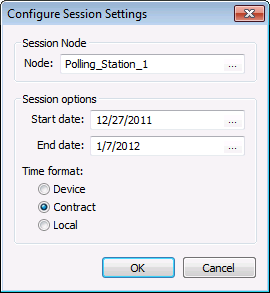
|
|
|
 Properties
  Polling device
  and ending
  Select Date dialog boxes.
